Historical overview of Maps integration in Tiki
Later on, Google Maps arrived, providing an easy to use map integration to regular web sites, even without having to manage mapping data. Thus, Google Maps specific code was added to Tiki, which was convenient for a lot of people.
Then, after a community discussion, starting in Tiki7, OpenLayers (another option was Mapstraction) was added as a native way to handle maps, which permits the use of tiles from Google Maps, Bing Maps, OpenStreetMap (which is like Wikipedia but for maps), MapQuest (which serves OpenStreetMap maps), etc.
The Cartograf project further improved maps in Tiki8, Tiki9, Tiki10 and Tiki11. Many features were added, including Street View support.
In Tiki12, all Google Maps specific code was removed in favor of using OpenLayers, so Google Maps is accessible via the OpenLayers Google Layer. In addition the Natural Access project (no longer active) added further new capabilities to upload any existing line and polygon data as files and to be able to further customise how data objects were shown on the underlying map layer.
In Tiki15 all MapServer-specific code has been removed. Also OpenLayers 2.x continues to be used for the map layer and integration with Tiki to allow editable map objects to be overlaid on the map layer but experimentation has started with the integration of OpenLayers 3.x.
In Tiki20 integration with OpenLayers 3.x and higher was improved, and more features were exposed through the corresponding PluginMap parameters, as well as adding new tilesets, some of them using vector tiles instead of just the usual raster tiles.
Map-related documentation, as of summer of 2019, still makes reference to the different historical approaches but as it continues to be improved the older methods that are no longer used will be deprecated/removed. Volunteers to help with documentation improvement : please contact marclaporte at tiki dot org
The Interface
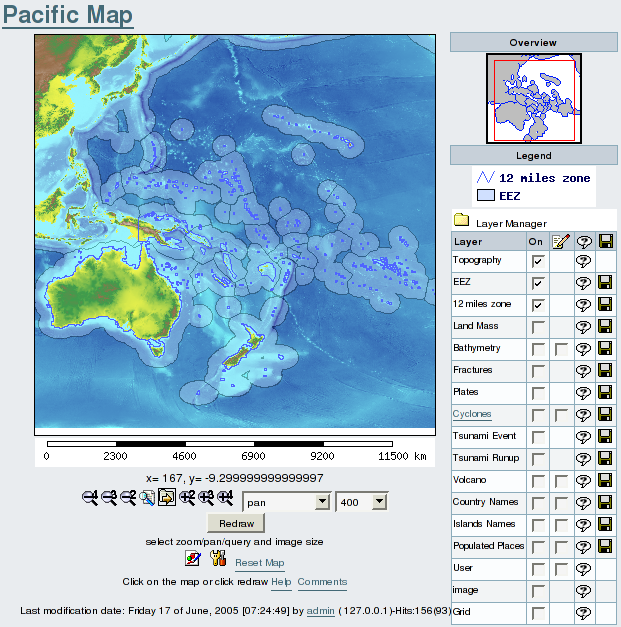
The interface is composed of several elements:
- The Map Title
- The Map
- The Overview
- The Legend
- The Layer Manager
- The Cursor Coordinates
- The Scalebar
- The Control Buttons
- The Map Info
Working with Maps
Zooming and Panning
First you have to select from the drop down box the level of zoom or pan you which to use. You then click on the map to define the point that will appear centered after the zoom/pan. Do not drag the map or try to draw a rectangle on the map
Querying a geographical object
Select the query tool next to the pan and zooming tools and click on the map on a geographical object. The object(s) will be highlighted and a table of objects with their attribute data will be displayed below the map.
Changing the Image size of the map.
The default map size is 400 pixels width, you can change the size to various pixels size, then click on redraw with pan being selected.
Selecting Views from dropdown list
A set of preselected locations may be available via a dropdown list.
Select a location name from the dropdown list then click on the Go button. This action will display the selected location in the redrawn map.
Selecting the layers on the map
The Maps Layer Manager is here to help you select the layers you want to display on your map. Use the [-] and [+] to fold or unfold the Layer Manager. Check the boxes of each feature you want to display. Beware some layers may hide others. The layers are organised from top to bottom on their drawing order. Therefore the bottom layer is the last one to be drawn, so it will appear on top on the map. You can also select to display labels when the layer supports it. If there is a link on the layer name then you can learn more about this layer. Some layers are queryable and will be indecated as such. Finnaly, if you are a registered user you may download in native format the public layers.