Fullscreen
[Show/Hide Right Column]

Forums User

Some screenshots need to be replaced to similar English verion


User Documentation
The forums menu in the application menu displays 2 links, one to the forum listing and another to the forum rankings. If you are admin you will be able to configure forums from the Admin forums screen in the administration menu, and also have the ability to import forum contents from external sources (such as another Tiki site) into one of your existing forums.

Image


Admin forums

Image


Creating/editing forums


The admin forums screen shows a list of available forums and a form to create/edit a new forum. Following is a breadown of each option:

Name The forum name as it will be displayed in the forum listing
Description A description for the forum
Prevent flooding Requires users to wait the specified time between posts. This can be used to prevent a user from flooding the forum with messages/posts.
Topics per page The number of threads/topics that will be displayed in one page when listing the forum threads/topics.
Section Forums can be organized into sections, you can assign an existing section to a forum, create a new section or don't use a section. When listing forums they will be grouped by section.
Moderator user Defines a single user to be set as forum moderator. When a user is set as moderator he/she will be granted all the permissions for this forum.
Moderator group Same as Moderator user but this time for a whole usergroup.
Default ordering for topics Specifies how threads/topics will be orderded in the thread list by default. Options are: Date: Creation date of the topic; Replies: Number of replies (messages) the topic has; Reads: Number of times the topic has been read; Last post: Date of the last post in the topic. (the last message posted); Title: topic title.
Default ordering for messages Determines how messages/posts of a thread/topic will be ordered by default when viewing an individual thread/topic. The options are: Date: message date; Title: message title; Score: Message score.
Send this forum posts to this email You can configure an email address that will receive all the topics and messages posted to the forum
Prune unreplied messages after If enabled threads/topics that do not have any replies will be automatically removed after the amount of time indicated
Prune old messages after If enabled threads/topics and posts/messages will be automatically removed when they are older than the indicated amount of time .
Topic list configuration Specifies which thread/topic properties should be displayed when viewing the thread list
Threads can be voted Allows users to vote on a thread by assigning points from 1 to 5
Forward messages to this forum to this email Allows you to have all new messages in a forum to be copied by email to the specified email address
Add messages from this email to this forum This option configures the so-called mail-in feature that allows anyone to post a message on the forum by means of sending an email with the desired post content to the specified email address. It is required to have a valid POP3 mail account on a server from which Tiki can check and retrieve the email messages. By specifying the username and password for the email account all messages will be downloaded automagically.
Use topic smileys Allows you to specify a smiley when posting a new thread or topic
Show topic summary Displays the short description underneath the thread/topic title of the thread/topic summary
User information display Specifies which user details should be shown when viewing a thread
Approval type Specifies whether or not you wish to work with a moderator queue. By selecting All posted no approval is required. When selecting Queue anynomous posts only posts from non forum members will be queued for approval. Finally when opting for Queue all posts any new posts in the forum will not be displayed until it has been approved.
Attachment Specifies whether you want to allow users posting attachments with their posts/messages and whether these should be stored in the Tiki database or on the local file system. By defining a max attachment size you can avoid users from posting attachments that are larger than the specified threshold.


Once a forum is created you can see it displayed in the listing at the bottom of the Admin forum page:

Image


The edit link can be used to edit the forum while the perms link can be used to set-up individual permissions for the forum.

Forum permissions

Setting Global forum permissions


From the admin groups screen you can set up the global permissions for the forums:

Image


Setting Individual permissions for a forum


From the admin forums screen you can click on the perms link to set up individual permissions for a forum.

Image


Setting individual permissions can be used to have private forums, to control who can post new topics in some special forums, to give admin privileges to a group of user only for some forums, etc. As usual when individual permissions are set for a forum global permissions don't apply.


Using the forum


As a user you can enter the forums section clicking the forums link in the application menu.

Image


You can order the forum listing as you want and you can click on the forum name to enter the forum.

When you enter to a forum a list of topics will be displayed:

Image


Topics are listed using the default ordering for topics set for the forum, as a user you can order the topics by any of the fields in the topic listing. The type is used to classify topics (more on this later). When the type icon is shown reddish (as in this case) the topic is new for the user. If you have the permission to post a topic you will see a link to display/hide the form to post a new topic. This is the form when displayed:

Image


You will have to enter the title for the topic, the type and the comment (the topic text), you can use some smileys shown at the right if you want. The topic-type that you can set will be normal unless you are an admin for this forum, in which case you can use any type. Topics type are described next:

Type Icon Description
Normal A normal topic
Hot Image A hot topic, a topic that is very important or polemical or anything you consider hot
Announce Image An announcement
Sticky Image A sticky topic will be displayed on top of the list of topics regardless of the ordering selected for topics.
Locked Image A locked topic is a topic where users cannot post messages, admins can lock a topic by changing the type of any topic to locked


If you click on the topic name for any topic a list of topic messages will be displayed:

Image


From this screen you can post new messages (if you have the permission), edit or remove messages (again if you have the permission) and quote a message if you want. The form to post a message for a topic is almost indentical to the form used to post a new topic.

The toolbar can be used to sort messages by date, score or title, limit the minimum score for a message to be displayed (threshold) or find messages containing some word.

Forum moderation

Image

Icon Description
Image move selected topics (to another forum)
Image unlock selected topics
Image lock selected topics
Image delete selected topics
Image merge selected topics


Forum Rankings


The forum rankings screen can be used to display rankings for the forums.

Image


How to get the forum messages by email ?

There are three ways to do it:

1. Monitor (=get by email) all messages from the forum

Like it usually works in email lists: copies are received from the initial messages (new topics) from all the new discussion threads, as well as from all their answers.
You need to click on the right icon when looking at the topics list from a forum. For instance:
Image


2. Monitor only the initial message from all the new discussion threads from this forum.

You need to click in the eye icon on the left when looking at the topics list of a forum. For instance:
Image

(= this way, you don't automatically get by email the answers from the new discussion threads, if we don't subscribe to them; see next step)

3. Monitor the answers to specific discussion threads.

You need to click on a specific discussion thread in a forum, and click on the eye icon on the right of the initial message from that discussion thread. For instance:
Image


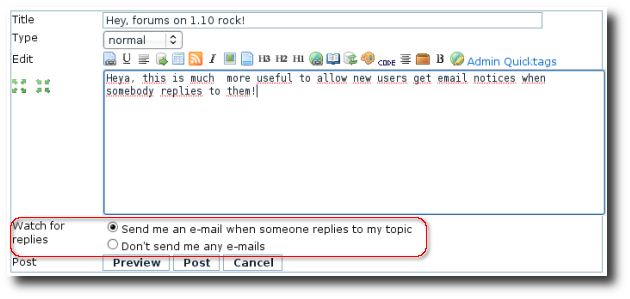
On 2.0, when you start a new thread you have the option to select monitoring that thread just at posting time (and selected by default):
Image


Additionally, in Tiki 2.0 you can watch a categorized forum through watching the category that it belongs to.


Alternatively, get messages by "group watch"

An admin of the site can set up your tiki to send messages to selected groups of users when the are some changes in objects of the tiki site, such a forum. Once Group watch is enabled tiki wide by an admin, a few new icons will show up to the right of the previous ones, allowing the admin to set which groups have to received emails:


For more information


Contributors to this page: xavi67871 points  , Daniel Gauthier1231 points  , Thomas Lattner61 points  , Mike153 points  , Marc Laporte9138 points  , xavidp1213 points  , Mose96 points  and system .
Page last modified on Thursday 03 May, 2012 13:36:27 UTC by xavi67871 points .
The content on this page is licensed under the terms of the Creative Commons Attribution-ShareAlike License.

Site Language

Reference Guide

Keywords

These keywords serve as "hubs" for navigation within the Tiki documentation. They correspond to development keywords (bug reports and feature requests):


Tiki Newsletter

Delivered fresh to your email inbox!
Newsletter subscribe icon
Don't miss major announcements and other news!
Contribute to Tiki