Plugin Approval
Starting in Tiki 3, the usage of potentially dangerous plugins needs to be validated in a case by case basis. An admin can do that through tiki-plugins.php.
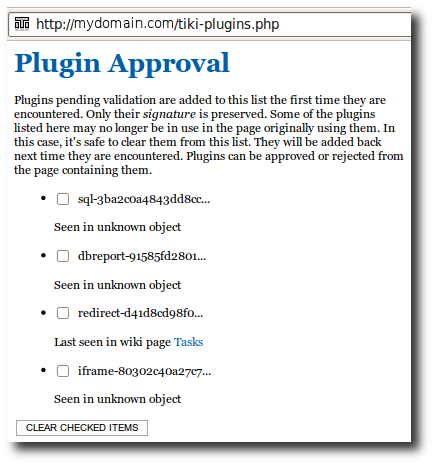
Then, if you go to one of those pages listed in the previous list, you'll find a box with the option to see the details to that plugin usage. Users with the required permissions will be able to preview and validate or reject them.
Example from 8.x
This example shows the "Approve all pending plugins" button. Note the Refresh button that should be used after a Tiki upgrade; that process can take a very long time to reparse all of the pages of your Tiki site; you may have to perform that Refresh more than one time to fully reparse your site.
Via command line
You can use Console like this:
php console.php plugin:refresh
php console.php plugin:approve
If your admin account is locked (ex.: by a brute force attack), this will not work. A workaround is to create another user (ex.: adminforspecialoperations) and put in a group to get full permission (tiki_p_admin)
php console.php plugin:refresh -vv --as-user=adminforspecialoperations
php console.php plugin:approve --all -vv --as-user=adminforspecialoperations
Related:
Alias names for this page:
Approving Plugins
Keywords
- approve all plugins
- approve all pending plugins
- approve pending plugins
- approving all plugins
- approving all pending plugins
- approving pending plugins