Installing Tiki via Fantastico
Background on Siteground
Siteground.com is a typical Fantastico host and one of the Tiki friendly hosts so it is used an an example for this documentation. All other Fantastico hosts will be very similar. Shared hosting provides mainly a inexpensive, easy hosting service for low traffic wikis. Their customer service is very good, and their interface is user friendly, but their servers are heavily loaded and sometimes tiki performance is kinda slow. Overall a good bet for a starter wiki host.
- Includes CPanel and Fantastico - includes installation through fantastico and webanalysis and other tools through cpanel
Installation
After securing an account and choosing a domain name, installation is straightforward. Installation is either install by FTP, or with Fantastico with siteground you cannot use SSH.
Manage Your Account.
Cpanel is a utility that allows you to manage your site without knowing unix or programming. To find cpanel, login, and click as shown below.
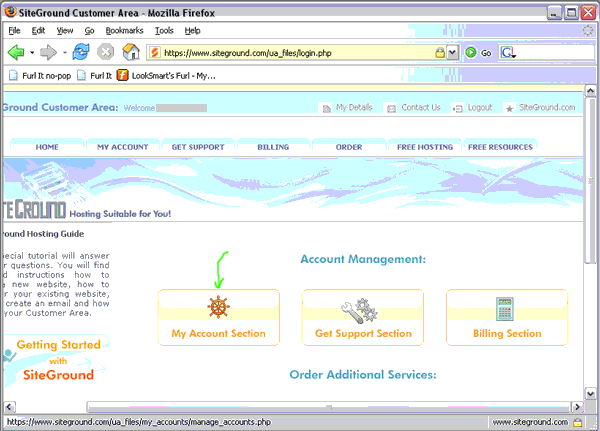
Access CPanel
You'll see the following options. Click on cpanel and login.
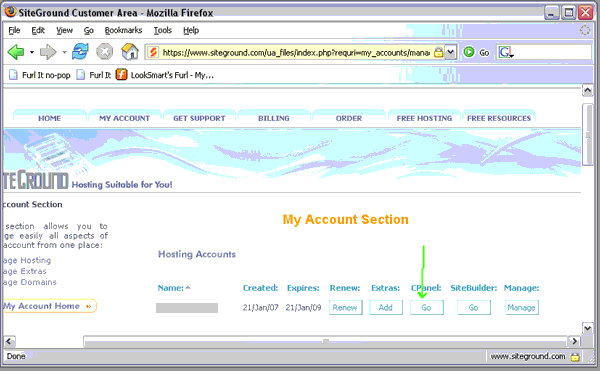
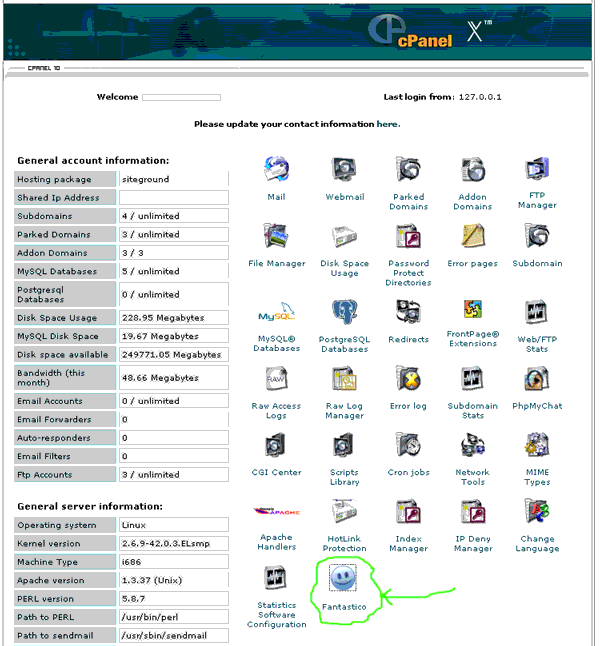
Access Fantastico
When CPanel comes up, ignore most of it for now. Click on Fantastico at the bottom.
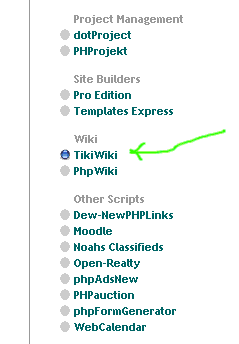
Install Tiki
Fantastico is a installer. You'll use it to install Tiki. Once fantastico comes up, click on Tiki Wiki CMS Groupware.
Then, select new installation. Notice for example that Tiki has been installed on karateforge.com. This same tool is used for future upgrades and remembers past installations.

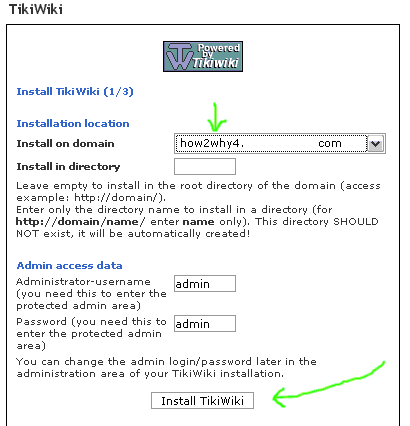
Choose your domain to install. Then click install. Notice that the administrator login is set as admin with password admin.
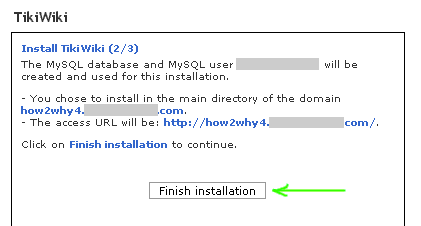
If all goes well, you'll see something similar to the following, and can click "finish".
Change Admin Password
Immediately after fantastico installation, change the admin password before someone else does. Go to your site and login:
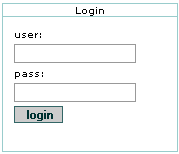
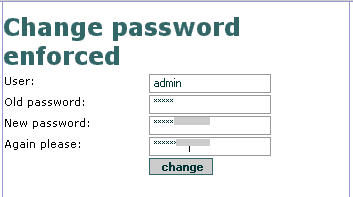
Use the admin login and admin password. The system will force you to change the password as follows.
Installation Complete
Tiki is installed and you're set up as the administrator.
;)